


TechSee Instant Mirroring
3.844.00 Reviews
App Specs
- Version
- 1.4.3
- Updated On
- License
- Free
- Downloads
- 100,000+
- Developer
- Techsee Google Developer Account
- Categories
- Communication
- Platform
- Android
Screenshots
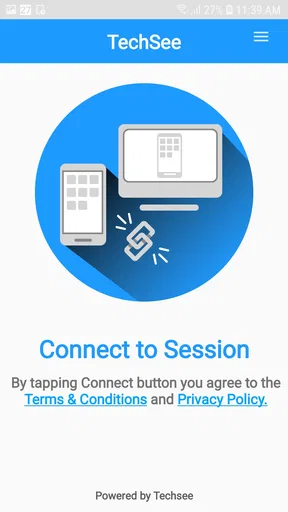
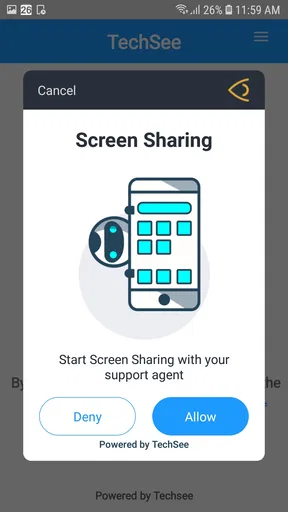
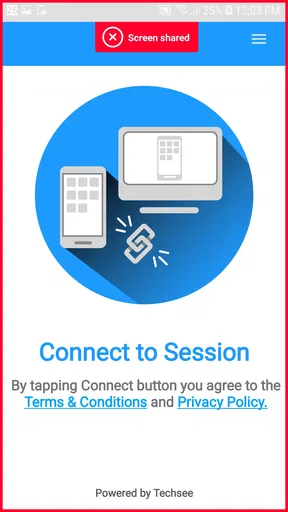
 Analysis by AppCompare
When a phone problem is difficult to describe, a normal support conversation can become surprisingly slow. I have often found myself saying “tap the button near the top,” only to discover that the other person is looking at a different screen or using a different version of an app. TechSee Instant Mirroring approaches that problem through visual communication: instead of relying entirely on spoken instructions, it is intended to help a support conversation include a view of the Android device itself.
That makes it a very different kind of communication app from messaging, calling, or video-chat software. Its value is not in keeping a conversation going for hours. Its value is in reducing the distance between what one person says and what another person can actually see. In my experience, that can make technical help feel less like a guessing game and more like a short, focused handoff.
The app is free, aimed at everyone, and comes from Techsee Google Developer Account. It sits in the communication category and has passed the point where it feels like an unknown experiment, with over a hundred thousand installs. The current version is 1.4.3, and it supports Android from version 7.1 onward. Those details matter because this is an app you may need to use with someone else, and compatibility can decide whether the conversation starts smoothly or stops before it begins.
Why visual support changes the conversation
The central idea behind TechSee Instant Mirroring is simple: seeing the same device context can remove several rounds of explanation. A relative who cannot find a setting, a customer trying to show a fault, or a colleague who is stuck in an unfamiliar screen may not have the vocabulary to describe what is happening. Visual access gives the support person a better starting point.
I see the strongest use case in situations where the problem is not conceptual but positional. Someone may know what they want to do but not where the relevant control is. They may also be looking at an error message that is hard to reproduce on another phone. With mirroring involved, the helper can respond to the actual screen rather than an imagined version of it.
This changes the rhythm of communication. A conventional call tends to move in a question-and-answer pattern: ask what is visible, wait for an answer, suggest a step, ask whether it worked, and repeat. Visual support can shorten that loop because the helper has more context before speaking. The conversation becomes more observational and less dependent on precise descriptions.
That does not mean every support issue becomes effortless. A mirrored view is useful only when both people understand what is being shared and why. It also does not replace calm explanations. If the helper gives rapid instructions while the device owner is still trying to follow the previous step, the visual channel can become another source of pressure rather than a solution.
Worth Reading Before You Choose

EA SPORTS FC Mobile 26 Is a Bigger Football Game, but It Takes Time

Flipboard Shows What News Apps Must Do Beyond the Feed

Switching to Android Auto Means Rethinking Your Driving Routine

Google Calendar Makes a Crowded Week Easier to Manage

Ludo King Makes the Most of the Minutes Between Plans

Baby Panda World Brings Quick Play to Modern Phones, but Its Game Library Feels Busy
A practical scenario with a family member
Imagine helping a family member who has just changed phones and cannot locate a setting needed for an everyday task. Over a regular voice call, the first few minutes may be spent identifying the screen, the phone model, and the exact wording of the menu. The owner might read labels incorrectly or skip a step without realizing it. With TechSee Instant Mirroring available, the helper can orient the conversation around what is actually on the display.
The useful habit here is to treat the session as a guided repair, not an open-ended call. Before starting, I would ask the other person to close unrelated screens, explain what will be visible, and agree on the single problem to solve. That preparation protects attention and makes the interaction feel purposeful. It also avoids the common mistake of turning a small technical question into an exhausting tour through every setting on the phone.
For older relatives or people who are uncomfortable describing technology, this approach can be especially reassuring. They do not have to find the perfect words before receiving help. At the same time, the person receiving support still needs to remain in control of the device. The best experience is collaborative: one person observes and explains, while the other performs the actions and confirms each result.
Where it fits among familiar alternatives
Messaging apps are better when the problem can be solved with a screenshot, a written instruction, or a file. A screenshot is also more comfortable when the screen contains information that should not remain visible during a live conversation. Voice calls remain the better choice for simple questions, especially when the issue is about an account, a plan, or a general instruction rather than a particular screen.
Video calls can provide a broader human connection, but they are not always the clearest way to show what is happening on a phone. Pointing a second camera at a display introduces glare, awkward angles, and unreadable text. TechSee’s visual-support approach is more focused: the relevant device view becomes the subject of the conversation instead of the person holding the phone.
Dedicated remote-support tools may be more suitable for workplaces that need extensive administration, device management, or a long record of support activity. I would not choose this app simply because it offers a visual channel; I would choose it when the main need is to make a short Android support exchange clearer. That narrower purpose is also its strength.
Attention, boundaries, and the cost of being constantly available
Mirroring can save time, but it also changes the attention cost of a support conversation. When someone shares a live device view, the helper may notice more than the original problem: notifications, open conversations, account names, or other personal details can enter the frame. Even when the app is being used for a legitimate reason, the feeling of being watched can make the device owner hesitate.
I would therefore avoid starting a session casually while the phone is full of unrelated activity. A quick preparation routine makes a meaningful difference. Silence or clear notifications where possible, close private conversations, and move away from screens that have nothing to do with the issue. The goal is not to create a formal ceremony; it is to reduce accidental exposure and keep the exchange narrow.
The best visual-support session is short, explicit, and easy to stop. That principle matters more than squeezing every possible task into one connection. If the problem is solved, end the session rather than continuing to browse. If the owner becomes uncomfortable, pause immediately and switch to a screenshot or voice explanation. A tool that improves clarity should not make people feel they have surrendered the whole phone.
This is also where the app may not suit everyone. People who regularly handle confidential work, financial information, health details, or private messages may prefer a less immediate method. A written description can be frustrating, but it gives the device owner more time to choose what to reveal. In those cases, the slower option can be the more respectful one.
Setting the pace before the first instruction
One practical improvement is to agree on the language of the session. I would ask the helper to describe one action at a time and wait for confirmation before moving on. The person holding the phone should be able to say “stop,” “I cannot see that,” or “that is not what appears here” without feeling behind. This sounds obvious, yet visual access can tempt the helper to take over the conversation.
A second useful habit is to separate diagnosis from action. First identify what is on the screen and what the owner expected to see. Only then decide what to tap. This prevents a common support mistake: giving a solution based on an assumption that the device is in the same state as another phone. Mirroring helps with diagnosis, but it does not eliminate the need to ask questions.
A third is to finish with a verbal recap. Once the issue is resolved, ask the device owner to explain the successful path in their own words. This turns a one-time rescue into a repeatable skill. If they cannot describe what changed, the session may have fixed the immediate problem without making the next occurrence any easier.
What the app feels like in everyday communication
My overall impression is that TechSee Instant Mirroring works best as a bridge between two communication styles. It is more informative than a voice-only call and more immediate than exchanging screenshots, but it is not meant to become a permanent window into someone’s phone. The difference is important. The app should support a specific conversation, not replace normal privacy boundaries.
Its usefulness also depends on the person at the other end. A patient helper can turn the visual connection into reassurance and clarity. An impatient helper can make it feel invasive or overwhelming. That means the app does not solve the human part of support; it simply gives both people better material to work with.
The Android requirement is worth checking before recommending it to someone with an older device. Since the app supports Android 7.1 and later, a person using an earlier system will need another method. This is particularly relevant in family support, where the person asking for help may not know which Android version is installed. Confirming compatibility before arranging a session avoids an awkward failed start.
The store response is mixed but respectable: it holds a 3.8 average from nearly one hundred sixty ratings, alongside dozens of written reviews. I read that as a sign that the idea is useful for some people but not universally frictionless. For a focused communication tool, the important question is less whether everyone loves it and more whether your particular support problem benefits from seeing the device context.
Who should use it, and who should choose something else
I would recommend trying it if you often help Android users who struggle to describe what is on their screens. It makes sense for family troubleshooting, short customer-support exchanges, and situations where a screenshot is too static or a second camera would be too awkward. It is also a good fit for people who value a direct, task-focused conversation rather than a long call filled with repeated clarification.
I would skip it when the issue is mainly conversational, when privacy is the dominant concern, or when the other person is likely to feel uncomfortable with live visual access. It is not the obvious choice for broad team communication, entertainment, or ordinary messaging. A familiar chat app may be faster for sending a single image, while a full remote-support product may be more appropriate for structured professional operations.
Because it is free and rated for everyone, the barrier to trying it is low. That does not remove the need for judgment. I would explain the purpose before asking someone to use it, keep the session limited to the agreed problem, and stop as soon as the useful information has been gathered. Those boundaries are part of using the app well, not an optional extra.
My verdict on the communication trade-off
TechSee Instant Mirroring is a specialized app with a practical reason to exist. It improves communication when words fail to describe a phone screen, and it can make support feel less repetitive by giving the helper immediate context. I especially appreciate the way it shifts the conversation from “tell me what you see” toward “let us understand the same thing together.”
Its trade-off is equally clear. Visual clarity can come at the cost of attention and privacy, and the live nature of the interaction requires more trust than sending a screenshot. The app is most successful when both people set a purpose, move slowly, and remember that the device owner remains in charge.
For Android users on a compatible system, I think it is worth keeping available for those moments when a normal call becomes a maze of misunderstood directions. I would not treat it as a replacement for every communication tool, but as a focused option for making technical help more precise. My social verdict is positive with boundaries: use it to shorten confusion, not to extend access.
Pros
- Guides support agents with clear
- real-time device visuals
- Works without requiring users to install a full remote-control app
- Can reduce troubleshooting time for common mobile issues
- Useful for both technical support teams and service customers
- Screen-sharing sessions are focused on support rather than social features
Cons
- Requires a compatible support provider using the TechSee platform
- Performance depends heavily on the user's internet connection
- Camera and screen permissions may concern privacy-conscious users
- Some troubleshooting features may vary by device or operating system
- Not useful as a general-purpose screen-sharing or meeting app
FAQs for TechSee Instant Mirroring
What is TechSee Instant Mirroring, and what is it used for?
TechSee Instant Mirroring is a remote visual-support tool that helps customer-service or technical-support agents understand a problem through the user’s smartphone camera. Instead of relying only on verbal explanations, the customer can share a live view of equipment, screens, cables, or other objects. The agent can then provide clearer instructions, identify visible issues, and guide troubleshooting more efficiently.
How does TechSee Instant Mirroring work during a support session?
Typically, a support representative starts a session and sends the customer an invitation, link, or code. After opening it, the user grants the requested camera and browser permissions, then points the phone at the item needing assistance. The representative can view the shared camera feed and may guide the user with spoken instructions or visual annotations, depending on the support provider’s configuration.
Does TechSee Instant Mirroring require an account or special equipment?
In many support scenarios, customers do not need to create a separate TechSee account or purchase additional hardware. Access is usually provided through a support invitation from a participating company. You will need a compatible Android or iPhone, a working camera, microphone permissions when required, and a stable internet connection. Exact requirements can vary according to the organization using the service.
Is TechSee Instant Mirroring safe and private to use?
TechSee Instant Mirroring is designed for controlled, support-related visual sessions, but users should still pay attention to what appears in the camera view. Avoid showing passwords, payment details, private documents, or other sensitive information unless the support agent specifically needs to see it. Review the permission prompts carefully, confirm that you are communicating with the correct company, and end the session when assistance is complete.
What should I do if TechSee Instant Mirroring does not connect or the camera fails?
First, check that your phone has a reliable Wi-Fi or mobile-data connection and that the invitation link has not expired. Make sure camera permissions are enabled and close other applications that may be using the camera. Restarting the session or opening the invitation again can also help. If problems continue, update your browser or app, try another supported device, and contact the company’s support team.


